Can I use this AI video upscaler for free?
You can start with a free trial. Some generation, batch, asset library, download, and history actions may require login or available plan quota.
Upload a short video, choose 1080p, 2K, or 4K output, and prepare cleaner footage for TikTok ads, product demos, archived clips, and reused creative assets.
Use the preview area to confirm the clip, then continue to the full workspace for cloud processing and result history.
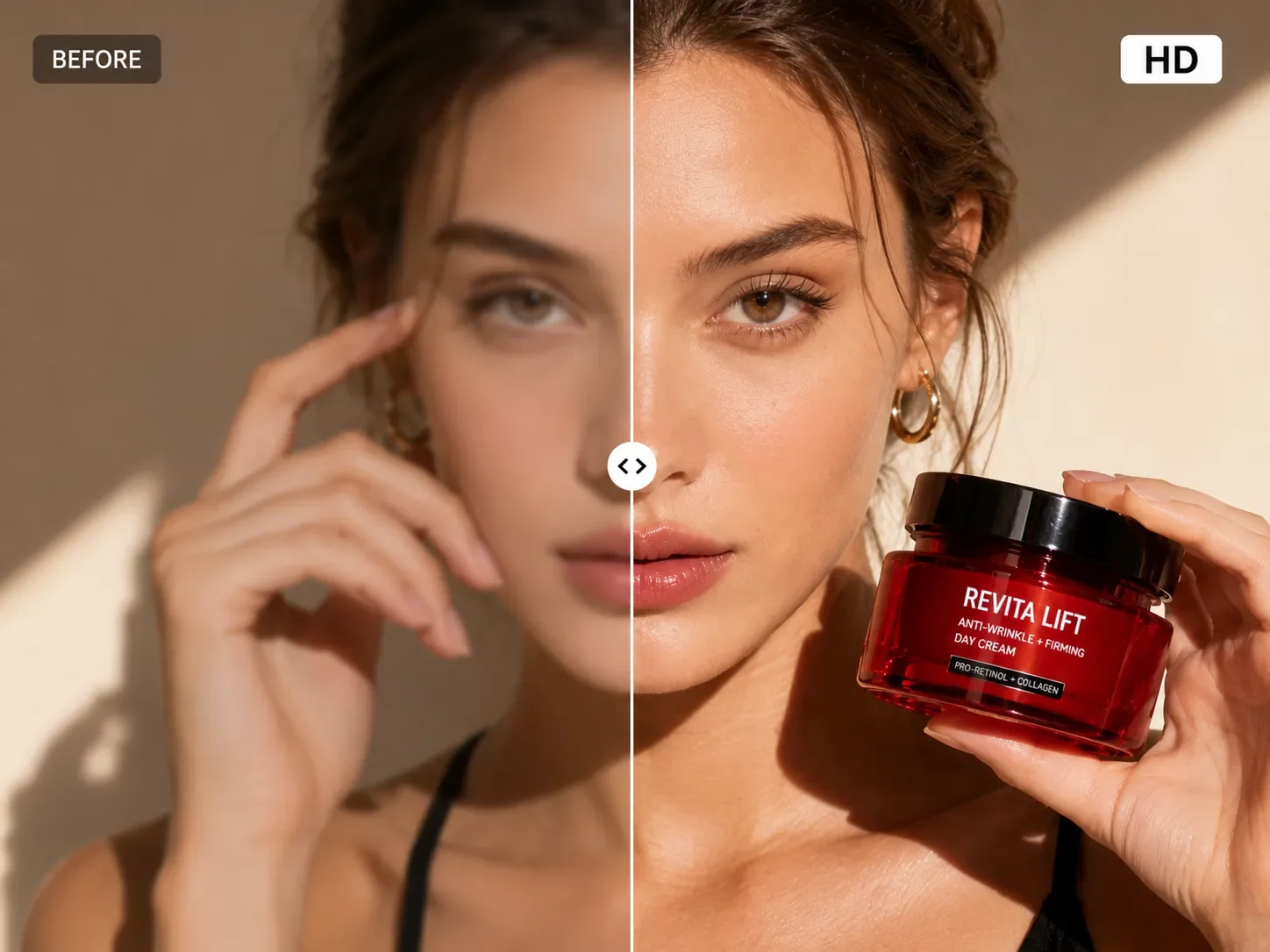
Continue in the full workspace for asset library clips, batch processing, previews, and downloads.
The video upscaler fits teams that already have footage and need a cleaner, larger version before publishing, editing, or testing ads.
Refresh compressed short-form clips so subject edges, text areas, and product details look cleaner before another campaign.
Prepare product demos, shelf videos, and marketplace assets for pages, ads, and social reuse.
Improve lower-resolution clips when reshooting is not practical and you need a more usable version.
Give reused creative files a cleaner pass before trimming, captioning, translating, or republishing.
Start with a local clip, choose the target output, then continue in the full workspace to process and download.
Add a common video file and review the preview before submitting it for enhancement.
Match 1080p, 2K, or 4K with 30 or 60 FPS based on source quality and where the clip will be published.
Open the workspace to process the task, preview the enhanced video, download files, and manage history.
Choose the resolution and frame rate that fit the way your clip will be published, edited, or tested.
Use 1080p for common social publishing, 2K for more editing room, and 4K when detail matters and the source is strong enough.
Choose a more efficient output for slower clips or a smoother output for product spins, camera pans, and high-motion footage.
Process several clips together when a campaign, product set, or creative test needs the same quality pass.
Source metadata is checked before processing so unsuitable clips are caught early.
Practical answers before you upload a real clip.
You can start with a free trial. Some generation, batch, asset library, download, and history actions may require login or available plan quota.
Low-resolution, platform-compressed, older, or repeatedly exported clips usually benefit most. Extremely out-of-focus or heavily damaged footage may only improve partially.
Use 1080p for most mobile and social delivery. Choose 2K or 4K when you need more detail, larger-screen playback, or extra editing room, as long as the source is suitable.
60 FPS is useful for product spins, walking shots, camera pans, gameplay, and other motion-heavy clips. 30 FPS is often enough for slower footage.
The full tool supports common video files up to 100 MB and 60 seconds, with up to 10 videos in one batch. The app reads metadata before processing.
Yes, if you have the rights to the source footage and follow copyright, likeness, and platform rules. Avoid uploading or publishing material you are not allowed to use.
Clean and adapt the same clip with tools from the CreatOK video cluster.
Clean hardcoded subtitle areas before re-editing or improving a clip.
Open Remove video subtitlesReduce distracting marks before reuse when you have the rights to the source.
Open Remove video watermarksExtract scene, pacing, and camera notes from a clip before rebuilding the idea.
Open Turn video into promptsUpload a short video, choose the output target, and continue to generate a clearer version for reuse.