Step by Step Guide to Using a Caption Remover for Videos

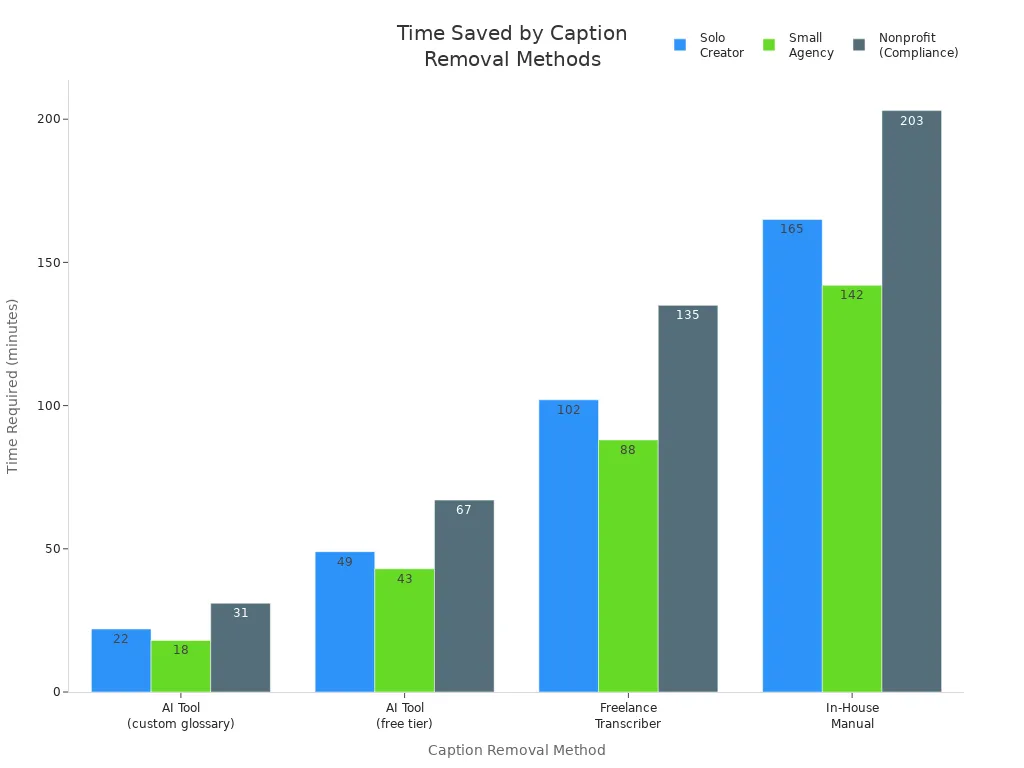
You want to remove captions from your video, right? Good news—you do not need any special skills or fancy software. AI-powered tools make using a caption remover super fast and easy. Just upload your video, let the tool work, and you’re done. Take a look at how much time you can save:
Method | Solo Creator | Small Agency (3-person team) | Nonprofit (Compliance-First) |
|---|---|---|---|
AI Tool (Otter.ai + custom glossary) | 22 min | 18 min | 31 min |
AI Tool (Free tier, no customization) | 49 min | 43 min | 67 min |
Freelance Human Transcriber ($1.50/min) | 102 min | 88 min | 135 min |
In-House Manual (Editor, no training) | 165 min | 142 min | 203 min |
Try it yourself and see how simple it can be.
Key Takeaways
AI-powered caption removers help you take captions off videos easily. You do not need special skills to use them. - Pick a caption remover that works with popular video formats. Make sure it keeps your video looking good. - Free tools work well for easy projects. Paid tools have more features and do not add watermarks. - There are three easy steps: upload your video, let the AI remove captions, and download the new video. - Always watch your video after editing. Check that captions are gone and the video still looks good.
Choosing a Caption Remover
When you start looking for a caption remover, you’ll see lots of AI-powered options. Tools like Gling, Vmake, VEED.IO, AniEraser, and KreadoAI stand out because they make the process quick and simple. You just upload your video, and the tool does the rest. These platforms use smart technology to spot and erase captions, so you don’t have to do any tricky editing yourself.
Key Features to Consider
Not all tools work the same way. You want a caption remover that’s easy to use and doesn’t ask you to sign up before you try it. Look for one that supports common video formats like MP4 or MOV. Make sure it keeps your video in HD quality and doesn’t leave blurry spots where the captions used to be.
Here’s a table to help you see what matters most:
Feature | Description |
|---|---|
AI-Powered Caption Tool | Makes edits fast and saves you time. |
Modern AI Detection | Finds and removes captions in different languages. |
Clean Result | Leaves no blurs or leftover text on your video. |
High-Quality Videos | Keeps your video sharp and clear. |
Color Effects | Maintains color and contrast after editing. |
Batch Uploads | Lets you remove captions from many videos at once. |
You should also check if the tool protects your privacy. Good tools use strong data protection, regular audits, and secure backups to keep your videos safe.
Free vs Paid Tools
You might wonder if you need to pay for a caption remover. Free tools work well for simple projects, but they often add watermarks or miss some captions. Paid tools, like KreadoAI or GhostCut, give you more features, better accuracy, and no watermarks. They also handle tricky backgrounds and different languages. Prices for paid tools can start as low as $0.06 per minute, which is great if you want a professional look.
Tip: If you work with lots of videos or need top quality, a paid tool can save you time and give you better results.
No matter which tool you pick, you can find one that fits your needs and budget.
How to Use a Caption Remover
Ready to get started? You can remove captions from your video in just a few clicks. Most tools make the process simple, so you do not need any editing experience. Here’s how you can do it:
Step 1: Upload Your Video
First, pick your favorite caption remover tool. Open the website or app. Look for the upload button. You will usually see a big button that says “Upload” or “Select Video.” Click it and choose your video file from your computer or phone.
Most popular tools support many video formats. Here’s a quick look at what you can upload:
MKV |
MOV |
AVI |
VOB |
MPEG |
You might wonder about file size limits. Some tools let you upload large files, while others have smaller limits. Check out this table for a quick comparison:
Tool | |
|---|---|
Captioner | 2GB |
Unwatermark | 500MB |
Tip: If your video is too big, try trimming it or compressing it before uploading.
Step 2: Remove Captions with AI
Once your video uploads, the magic begins. Most caption remover tools use smart AI to find and erase captions. You usually just need to click a button like “Remove Captions” or “Start.” The tool scans your video and removes the text, so you do not have to do anything tricky.
Some tools, like FalcoCut, use AI to detect and erase hardcoded subtitles. They even rebuild the background for a natural look. BlurVideo uses smart algorithms to remove subtitles while keeping the original background. This works best when captions are clear and easy to spot.
Tool Name | Description |
|---|---|
FalcoCut | Uses AI to detect and erase hardcoded subtitles, rebuilding the background for a natural look. |
BlurVideo | Employs smart algorithms to effectively remove subtitles while maintaining the original background. Works best for clearly defined captions. |
You might worry about video quality. Good news—tools like AVCLabs make sure your video stays sharp. They use content padding and motion compensation to keep everything looking smooth.
Tool Name | Quality Preservation |
|---|---|
AVCLabs | Ensures video quality is not compromised through content padding and motion compensation. |
Note: You do not need any special skills. The AI does all the hard work for you.
Step 3: Download the Clean Video
After the tool finishes, you can preview your video. If you like the result, download the clean version to your device. Most caption remover tools let you save your video in popular formats. Here are some common options:
MP4
MOV
WebM
Just pick the format you want and hit the download button. Your video is now ready to share, post, or use however you like—no captions in sight!
Callout: If you want the best results, always check the preview before downloading. Make sure the captions are gone and the video looks great.
You see? Using a caption remover is quick and easy. You do not need to be a tech expert. Just follow these steps, and your videos will look clean and professional in no time.
Troubleshooting and Tips
Common Issues and Fixes
Sometimes, captions just don’t disappear as you expect. Don’t worry—you can fix most problems with a few simple steps:
Download the caption file from your video’s settings page.
If you see a “404 Not Found” error, delete the file and upload it again. Sometimes, the upload doesn’t finish right.
If the file downloads, convert it to a WebVTT file and check it with a validator site.
Make any corrections the validator suggests.
Tip: Always double-check your video after using a caption remover. If you spot leftover text, try running the tool again or use a different one.
Removing Hardcoded Captions
AI tools do a great job, but sometimes hardcoded captions stick around. You have a few options:
Crop the video to cut out the area with captions. This works best if the text sits at the bottom or edge.
Cover the captions with an overlay, like a colored bar or blur.
Use advanced editing tricks to blend the captions into the background.
If you want the cleanest look, cropping works best for letterboxed subtitles. Just remember, cropping can remove important parts of your video.
Limitation | Description |
|---|---|
Cropping may cut out visuals you want to keep. | |
Quality Trade-offs | Blurring or covering makes text unreadable but can lower video quality. |
Maintaining Video Quality
You want your video to look sharp after removing captions. Here’s how you can keep it that way:
Figure out if captions are hardcoded or softcoded. Softcoded ones are easy to turn off.
Pick the right tool for hardcoded captions, like Filmora.
Always save a backup of your original video.
Watch your video after editing and fix any problems you see.
Make sure you have permission to edit the video.
Blurriness can sneak in for many reasons. Check out this table for common causes:
Cause | What Happens |
|---|---|
Camera issues | Shaky camera makes the video blurry. |
Focus issues | Wrong focus point leads to fuzziness. |
Speed issues | Fast movement without proper settings causes motion blur. |
Image Noise | Grainy or low-quality footage looks less sharp. |
Resolution and light | Low light or slow shutter speed reduces clarity. |
Lens quality | Bad lens can distort or blur your video. |
Note: Always preview your video before sharing. A quick check can save you from surprises!
You can see how easy it is to remove captions from your videos. AI-powered tools do the hard work for you, so you do not need any special skills. Try out a few different tools and see which one works best for you.
Share your results with friends or your team!
Ready to make your videos look clean and professional? Give it a try today!
FAQ
How does a caption remover work?
A caption remover uses AI to scan your video. It finds the text and erases it. You just upload your video and let the tool do the rest. You do not need any editing skills.
Can I use a caption remover on mobile devices?
Yes! Many caption remover tools work in your browser. You can use them on your phone or tablet. Just open the website, upload your video, and follow the steps.
Will a caption remover lower my video quality?
Most tools keep your video sharp. Always check the preview before you download. If you see any blur, try another tool or adjust your settings.
What if the captions are hardcoded and will not go away?
Try cropping the video or covering the captions with a blur. Some advanced tools can handle hardcoded text better. If one caption remover does not work, test another for better results.
See Also
Easily Eliminate Video Captions With These Simple Steps
Quickly Get Rid of Video Captions in Minutes
Effortlessly Remove Video Captions Using Online Tools