Remove Subtitles from Video

How to Remove Subtitles from Video: 2026 AI & Manual Guide
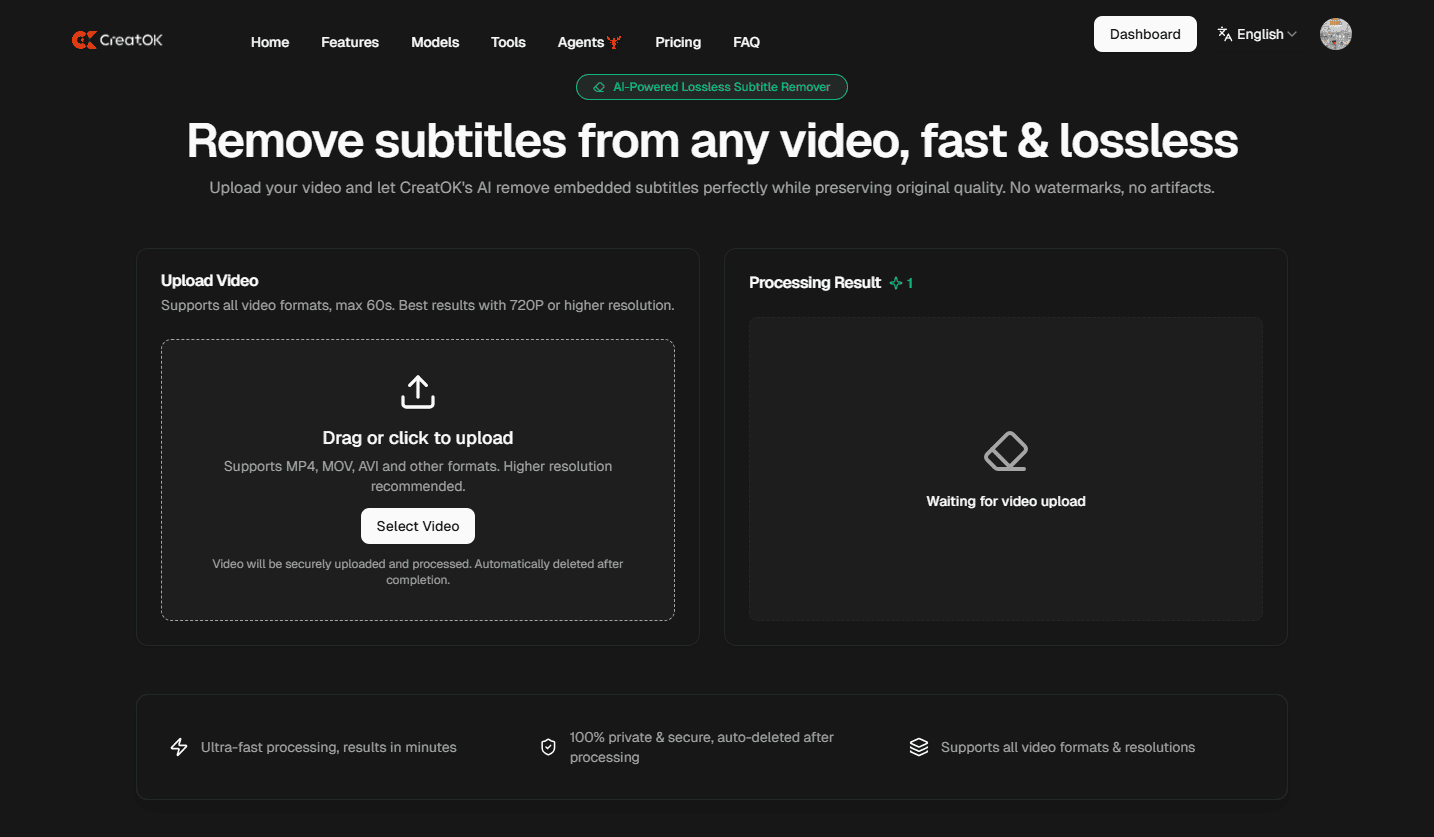
To remove subtitles from video is the process of either extracting independent text files (soft subtitles) or using visual editing techniques to erase text that has been "burned" into the video frames (hardcoded subtitles). In 2026, this task has evolved from crude blurring to sophisticated AI-driven inpainting, where neural networks analyze surrounding pixels to reconstruct the background behind the text. Whether you are a content creator repurposing global footage or a researcher cleaning up archival clips, understanding the distinction between file-based extraction and pixel-based reconstruction is essential for maintaining high-definition visual integrity.
Understanding Subtitle Types: Soft vs. Hardcoded
Before you can effectively remove subtitles from a video, you must identify how they are attached to the file. This determines whether you need a simple file editor or a powerful AI reconstruction tool.
Soft Subtitles (Closed Captions)
Soft subtitles exist as a separate data stream within the video container (like MKV or MP4). They can be toggled on or off in a media player. Removing these is instantaneous as it involves no pixel manipulation—simply stripping the metadata stream.
Hardcoded Subtitles (Open Captions)
These are part of the actual video image. To remove hardcoded subtitles, you must physically alter the pixels. This is the more challenging scenario that requires advanced software like Seedance 2, CapCut AI, or Adobe Premiere Pro.
Top Methods to Remove Subtitles from Video in 2026
The following table compares the most effective methods currently used by industry professionals.
Method | Best For | Technical Difficulty | Visual Quality |
AI Inpainting | Hardcoded text in complex scenes | Medium | Excellent (Clean reconstruction) |
Cropping | Text located at the extreme bottom | Low | Loss of frame real estate |
Blurring/Masking | Quick fixes, low-quality needs | Low | Poor (Obvious smudging) |
Stream Extraction | Soft subtitles/MKV files | Very Low | Original Quality |
Overlay/Sticker | Social media creators | Low | Obscures part of the frame |
AI-Powered Object Removal: The "Magic Eraser" for Video
With the rise of models like Seedance 2 and Runway Gen-4, "erasing" text has become a standard feature. These tools use a process called Video Inpainting.
Masking: You highlight the subtitle area across a few keyframes.
Temporal Analysis: The AI looks at the frames before and after to see what was behind the text as the camera moved.
Synthesis: It "paints" the missing background back in, matching the lighting, grain, and texture of the original footage.
Pro Tip: When using AI to remove subtitles from video, always process in short segments (5–10 seconds) to ensure the AI doesn't "hallucinate" incorrect textures over long durations.
The Cropping Method: A Simple, Lossy Alternative
If you don't have access to high-end AI tools, cropping is the oldest trick in the book. By changing the aspect ratio (e.g., from 16:9 to 21:9), you can often "cut off" the bottom portion where subtitles live.
When to Use Cropping
When the video has a "letterbox" (black bars) at the bottom.
When the subtitle is placed very close to the edge.
When you intend to re-upload the video to a vertical platform like TikTok or YouTube Shorts.
The Downside
Cropping removes original visual information. If the subtitles are placed over a character's chest or a crucial part of the scenery, cropping will ruin the composition of the shot.
How to Extract Soft Subtitles (Lossless Method)
If you are working with an MP4 or MKV file that has toggleable captions, do not use video editors. Instead, use a Media Stream Editor.
Step-by-Step Workflow:
Download a tool like MKVToolNix or use FFmpeg via command line.
Input the command:
ffmpeg -i input_video.mp4 -map 0 -map -0:s output_video.mp4.This command maps all video and audio streams but excludes the subtitle (s) stream.
The resulting file will be identical in quality but the subtitles will be gone.
Advanced Blurring and Overlays: The Content Creator's Hack
For rapid-fire social media production, many creators choose to hide rather than remove.
Gaussian Blur: Applying a localized blur over the text. This is functional but often looks unprofessional.
Background Bars: Adding a semi-transparent black bar across the bottom to house new subtitles in a different language.
Dynamic Overlays: Placing your own branding or a "Like & Subscribe" graphic directly over the old hardcoded text.
Legal and Ethical Considerations
Removing subtitles can be a legal gray area depending on your jurisdiction and the copyright status of the content.
Fair Use: If you are using clips for criticism, commentary, or education, removing subtitles might be necessary to provide a clean viewing experience.
Copyright: Erasing watermarks or hardcoded subtitles from copyrighted films to re-distribute them is a violation of the Digital Millennium Copyright Act (DMCA). Always ensure you have the rights to the footage before modification.
FAQ Section
Q1: Can I remove subtitles from video for free?
A: Yes. For soft subtitles, FFmpeg is free. For hardcoded subtitles, free tools like CapCut (desktop version) offer basic "AI removal" or cropping features, though premium AI inpainting often requires a subscription.
Q2: Does removing subtitles reduce the video quality?
A: If you use the extraction method for soft subs, there is zero quality loss. If you use AI inpainting for hardcoded subs, there may be a slight "softness" in the area where the text was, but the overall resolution remains the same.
Q3: How do I remove subtitles on a mobile phone?
A: Apps like Video Eraser or CapCut allow you to mask or crop out subtitles directly on iOS and Android. However, for pixel-perfect AI reconstruction, a desktop GPU is usually recommended.
Q4: Is there an online tool that removes hardcoded subtitles?
A: Several web-based platforms (e.g., AniEraser or HitPaw) allow you to upload a clip and erase text. These are convenient but usually have file size limits and privacy risks for sensitive footage.
Q5: Can AI remove subtitles if they are behind a moving object?
A: Yes, modern AI models in 2026 are capable of "occlusion handling." They can differentiate between the static text and a moving character passing in front of it, though this requires more processing time.
Q6: What is the best format to save a video after subtitle removal?
A: Stick to H.265 (HEVC) or AV1 to maintain the highest quality at the lowest file size, especially after performing AI inpainting which can sometimes introduce slight noise.