How to Remove Captions in YouTube: What You Can Actually Remove and What You Can’t

How to Remove Captions in YouTube
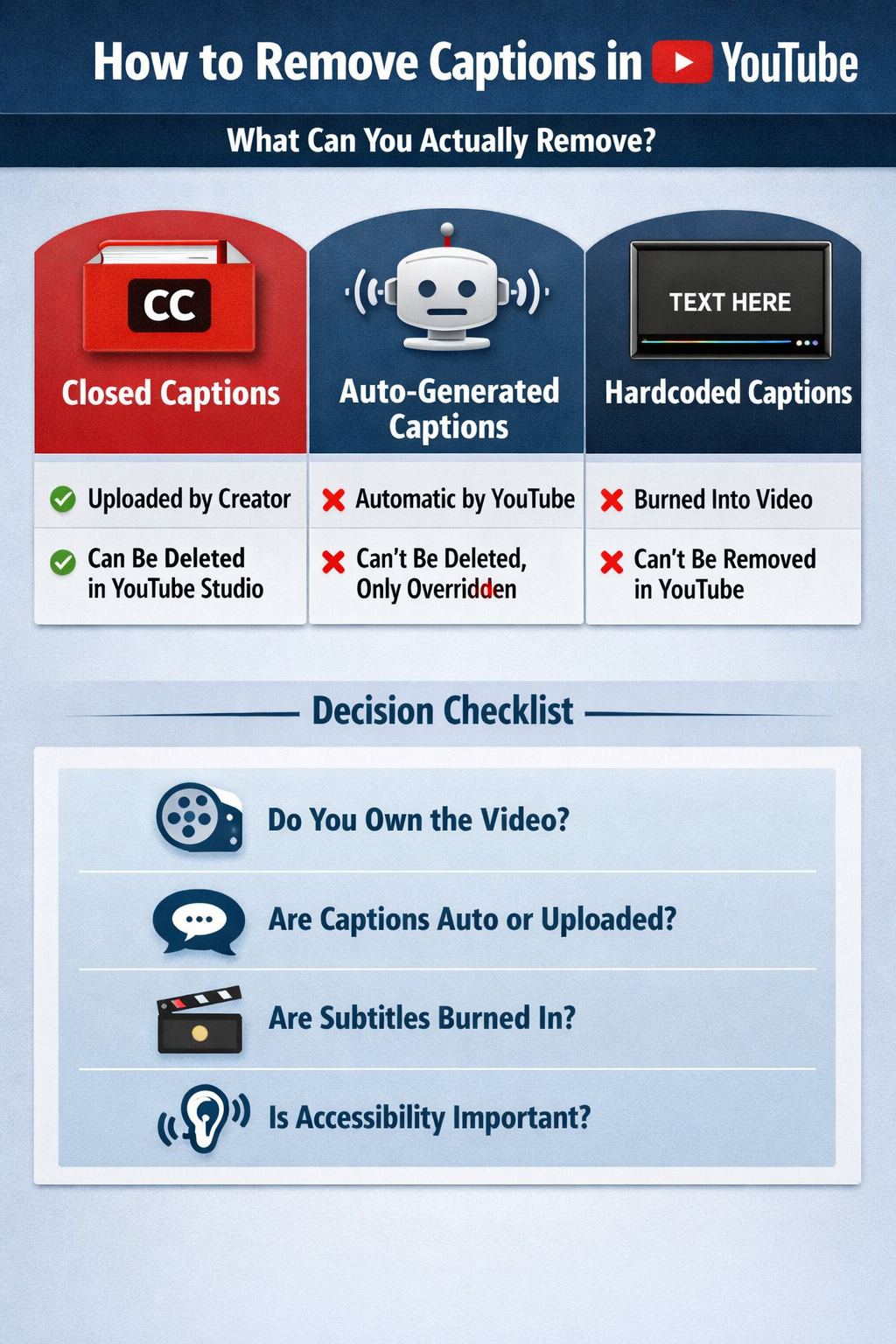
A practical guide based on how YouTube captions really work
Searching for how to remove captions in YouTube often leads to confusing answers. Some guides say captions can be removed in seconds, while others insist it’s impossible. Both claims can be true — depending on what kind of captions you’re dealing with and whether you own the video.
This article explains how caption removal actually works on YouTube, what options exist for viewers versus creators, and why some captions simply cannot be removed inside the platform.
Why “Remove Captions” Means Different Things on YouTube
One reason this topic causes confusion is that YouTube uses the word captions for multiple systems that behave very differently.
From a platform perspective, captions fall into three categories, and only one of them can be fully removed.
Caption Types That Affect Removal Options
Closed Captions (CC) Uploaded by the Creator
These are the most flexible captions on YouTube.
How they work:
Stored as separate subtitle files (SRT, VTT, etc.)
Can be turned on or off by viewers
Managed by the video owner in YouTube Studio
Can they be removed?
Yes — but only by the video owner.
Typical creator workflow:
Open YouTube Studio
Go to Content → Subtitles
Select the language track
Delete the caption file
Once deleted, these captions are completely removed from the video.
Why this matters:
Many users think toggling CC off removes captions permanently. In reality, it only hides them during playback.
Auto-Generated Captions
YouTube automatically generates captions for many videos using speech recognition.
Key characteristics:
Created and maintained by YouTube
Enabled by default
Not stored as user-editable files
Can they be removed?
Not directly.
Creators cannot permanently delete auto-generated captions. In most cases, the only options are:
Uploading a custom subtitle file to override them
Disabling caption display where available
Platform reason:
Auto captions are treated as an accessibility feature. YouTube prioritizes availability over creator control.
Hardcoded (Burned-In) Captions
These captions are part of the video image itself.
How to identify them:
Always visible
CC button has no effect
Remain visible after downloading the video
Can they be removed on YouTube?
No.
Because hardcoded captions are embedded into the video frames, YouTube has no mechanism to remove them.
How Viewers Can Handle Captions (Without Video Ownership)
If you’re watching someone else’s video, your options are limited.
What you can do:
Turn off CC using the player controls
Change default caption preferences in YouTube settings
What you can’t do:
Delete captions
Remove auto captions permanently
Modify hardcoded subtitles
This limitation explains why many users repeatedly search for how to remove captions in YouTube even after trying common “solutions.”
How Creators Can Remove or Control Captions
Removing Uploaded Captions
If you uploaded the subtitles yourself, removal is straightforward through YouTube Studio.
However, creators should note:
Removing one language track does not affect others
Auto captions may still appear after deletion
Managing Auto-Generated Captions
Since auto captions cannot be deleted, creators usually take one of these approaches:
Upload a corrected subtitle file
Replace auto captions with manually edited versions
Leave auto captions enabled for accessibility
From an industry perspective, most creators override rather than remove auto captions.
Why Hardcoded Captions Are Rarely “Removed”
When captions are burned into a video, removal requires video editing outside YouTube.
Common approaches include:
Cropping the video (loses framing)
Masking or blurring subtitle areas
Re-editing from original project files
In practice, creators often choose to re-export the video without captions and re-upload it, which is usually faster and produces better visual results.
Common Misunderstandings That Block Results
“Turning Off Captions Deletes Them”
Turning off captions only affects display, not the video’s data.
“YouTube Is Blocking Caption Removal”
In most cases, YouTube isn’t blocking removal — the captions simply aren’t removable by design.
“All Captions Work the Same Way”
This assumption leads to most failed attempts. Caption type determines everything.
How to Decide the Right Approach
Before trying to remove captions, clarify:
Do you own the video?
Are the captions switchable or burned in?
Are they auto-generated or uploaded?
Is accessibility important for your audience?
Once these questions are answered, the correct solution usually becomes obvious.
Final Thoughts
Removing captions in YouTube is less about finding a hidden button and more about understanding how captions are created and stored.
Uploaded captions can be removed
Auto captions can be overridden, not deleted
Hardcoded captions require video editing
This distinction explains why some videos allow caption removal while others never will — and why many tutorials fail to give consistent answers.