Caption remover from video made easy with free tools


You can take captions off your videos fast and easy with free online tools. Many people say these tools are simple to use and make removing captions easy. The preview feature lets you check changes before you save. Here is what people like most:
Description | |
|---|---|
User-friendly interface | Easy design helps you make quick changes |
Effortless caption removal | The steps are simple and work well |
Preview feature | See your edits before you finish for better control |
People often ask if these tools are free for everyone. They also want to know if the video looks normal after taking away text. Some ask if the caption remover from video changes the quality.
Key Takeaways
Free online tools help you take captions off videos. These tools are simple to use. You do not need special skills to use them.
Always watch your video after you edit it. This helps you make sure captions are gone. It also helps you check if the video still looks good.
Look at the privacy settings of the tools you pick. Make sure they erase your files after they finish. This keeps your videos safe.
Best free caption remover from video tools
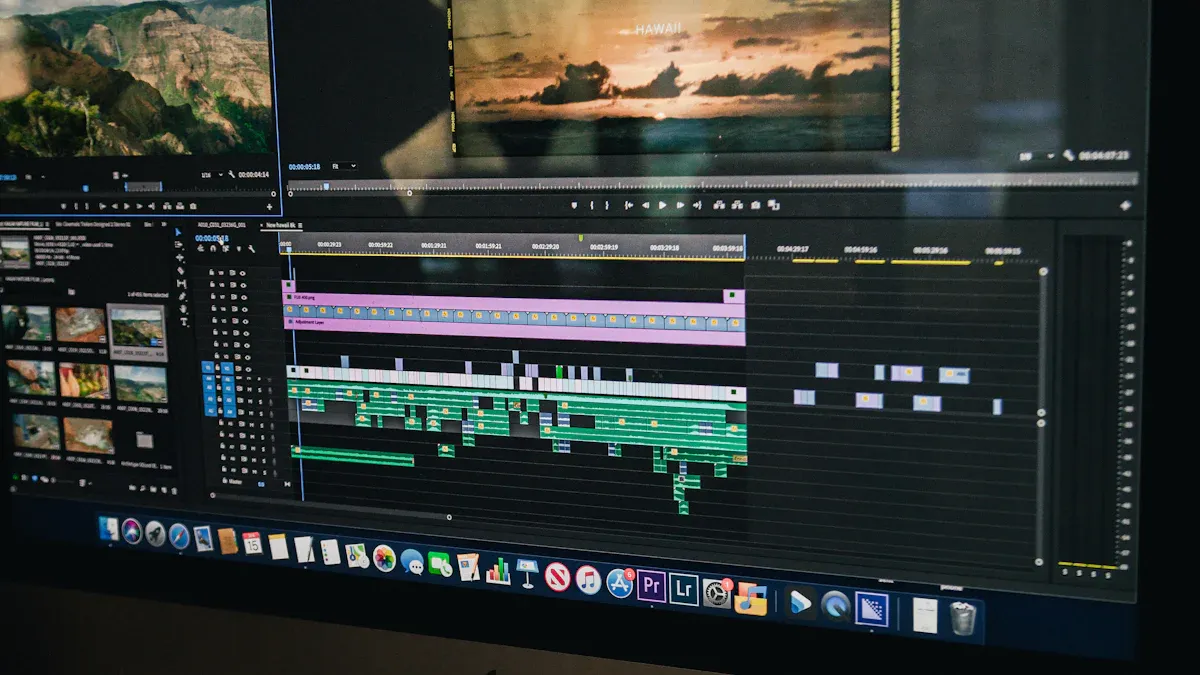
Top AI-powered online tools
There are many free AI-powered tools for removing captions. These tools use smart technology to help you. They make the process easy for you. Here are some popular choices:
AniEraser: You can erase captions with a few clicks.
Fotor: AI finds and removes text from your video.
AVCLabs: Tracks moving captions and removes them.
KreadoAI: Works with many video formats for subtitle removal.
Picsman: Takes away text overlays fast.
Vmake: Does basic caption removal jobs.
Ezremove AI: Erases text quickly and accurately.
VEED: Lets you edit and remove captions online.
Instant AI Caption Cleanup: Uses AI to clean up captions.
One Take AI: Makes and changes captions in different languages.
Tip: Some tools, like Remover.video and X-Design, let you work on many videos at once. This helps you save time if you have lots of files.
Comparison of features and formats
You should look at the main features before picking a caption remover from video. The table below shows how AniEraser, Fotor, and AVCLabs compare:
Feature | AniEraser | Fotor | AVCLabs |
|---|---|---|---|
AI Technology | Uses advanced AI for careful removal | AI finds and removes objects | Machine learning tracks moving captions |
Batch Processing | Yes | No | No |
Video Quality | Keeps the original video quality | High quality with no blur | Can blur, erase, and improve video |
Removal Modes | Picks a fixed area to remove | Removes captions automatically | Fixed removal and tracks objects |
User Steps | Needs 3 steps to remove captions | Needs 3 steps to remove captions | Needs 4 steps to remove captions |
Most free tools only let you use videos up to 20MB. You might need to pay for bigger files or longer videos. Free plans usually give you basic features that work well for short clips.
How to use caption remover from video tools
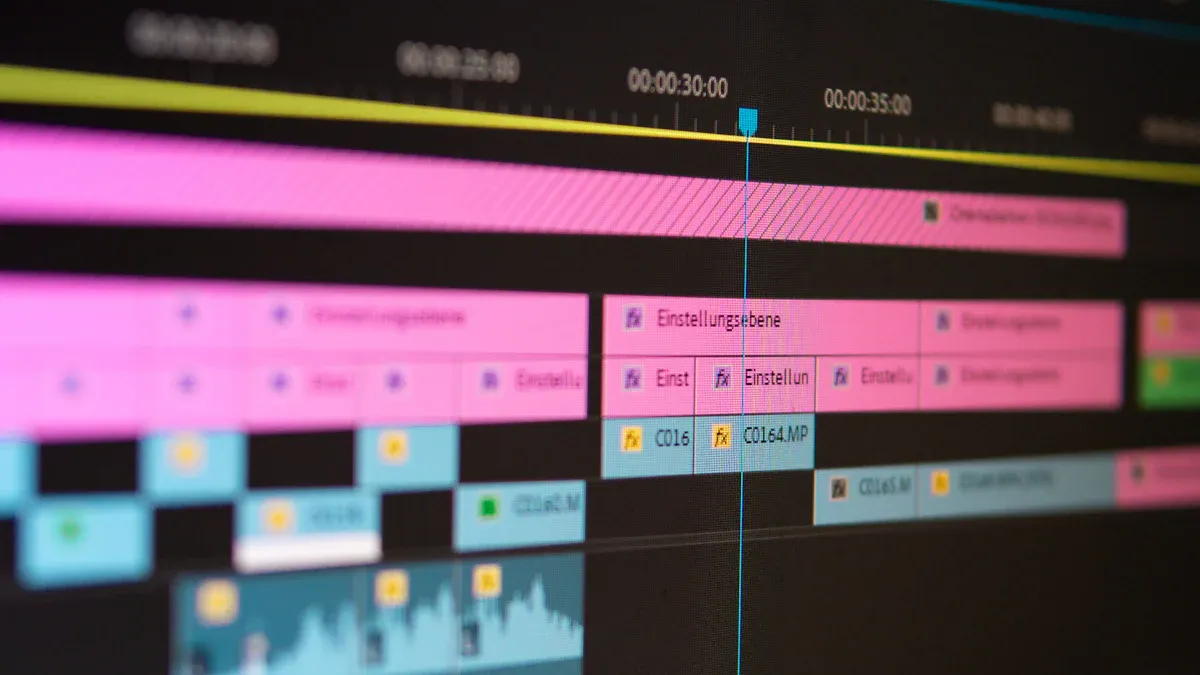
Step-by-step guide for AniEraser
AniEraser gives you a simple way to remove captions from your videos. You do not need special skills. You can follow these steps:
Upload your video file to AniEraser.
Select the area with captions using the selection tool.
Click the "Erase" button. AniEraser uses AI to remove the text.
Preview your video. Make sure the captions are gone and the video looks good.
Download your edited video.
AniEraser keeps your video quality high. You can use batch processing if you have many files. The tool works best with short clips and small file sizes.
Tip: Always preview your video before saving. This helps you check if the caption remover from video tool erased all text.
Step-by-step guide for Fotor
Fotor uses AI to find and remove captions automatically. You can use it with these steps:
Open Fotor and upload your video.
Choose the "Remove Text" option.
Let Fotor scan your video. The AI will find captions and mark them.
Click "Remove." Fotor erases the captions.
Watch the preview. Make sure the video looks normal.
Save and download your video.
Fotor works well for videos with clear captions. You do not need to select areas by hand. The process is quick and easy.
Note: Fotor does not support batch processing. You must work on one video at a time.
Tips for hardcoded captions and troubleshooting
Hardcoded captions are part of the video image. You cannot turn them off like soft subtitles. Some caption remover from video tools use AI to erase or blur these captions. You can see how different tools handle hardcoded captions in the table below:
Feature | SubtitleExtractor | RecCloud |
|---|---|---|
AI-Driven Accuracy | High precision in subtitle extraction | Allows removal of subtitles without quality loss |
Language Support | Supports multiple languages | Supports multiple languages |
Speed | Fast extraction process | Quick removal process |
Privacy | Secure processing and deletion of files | Not specified |
Method | Extracts hardcoded subtitles | Blurs subtitles directly |
You may find that some tools blur the captions while others try to erase them. SubtitleExtractor and RecCloud support many languages and work fast. SubtitleExtractor can extract hardcoded subtitles with high accuracy. RecCloud can blur subtitles without lowering video quality.
If your video has multiple audio tracks, you can use tools like Descript and Kapwing. These tools let you edit all audio tracks at once. You do not need to worry about losing sound or mixing up tracks. Kapwing works well for podcasts and tutorials.
Tip: If you see poor results, try uploading a higher-quality video. Some tools work better with clear images. If your upload fails, check the file size and format. Most free tools support MP4 and MOV formats.
You should always check privacy settings. Some tools delete your files after processing. This keeps your videos safe.
Common issues and solutions
Troubleshooting upload and quality problems
Sometimes, you may have trouble uploading videos to free caption remover tools. These problems can make the tool not work well. Here are some errors you might see:
Description | |
|---|---|
Low audio quality | More mistakes happen if the audio is not clear. |
Lack of punctuation | Captions often miss punctuation, so you need extra editing. |
Speaker differentiation not automatic | The tool does not split captions for different speakers by itself. |
If your video format does not work, you can try these ideas:
Use video repair software to fix broken files.
Try other video players to see if they work.
Change your video to a format the tool supports with VLC Media Player.
Add the right video codecs to your computer.
Update your video driver to the newest version.
Make sure your operating system is up to date.
Tip: If your video is blurry or captions are still there, upload a better-quality video. Clear videos help AI do a better job.
Privacy and security tips
It is important to think about privacy and safety when you use free caption remover tools. Many tools delete your files after they finish, but you should check their privacy rules to be sure. If you use these tools on copyrighted videos, make sure you have permission or the right license. Taking away captions or watermarks without permission can cause legal problems. Always read the software’s Terms of Use and license rules before you start.
Note: Keep your personal videos safe by picking tools that promise secure file handling and automatic deletion after editing.
You can take captions off videos with free online tools. Many people use these tools because they do not cost money. They work well for small projects and personal videos.
Free tools let you edit videos quickly. You can spend more time being creative.
You do not need to be an expert.
Tool | Features |
|---|---|
Kapwing | You can edit in your browser. It has auto-caption and easy editor. You use pictures to help you edit. |
Amara | People work together to add captions. It supports many languages and offers pro help. |
Try these tools and follow the steps. You keep your videos safe and the quality stays good.
FAQ
How do you know if captions are hardcoded or soft?
You can turn off soft captions in your video player. Hardcoded captions stay on the screen and cannot be turned off.
Will removing captions lower my video quality?
Most free tools keep your video clear. You should always preview your video before saving to check for any changes.
Can you remove captions from any video format?
Many tools support MP4 and MOV. If your video does not work, you can convert it using a free converter like VLC Media Player.
See Also
Easily Eliminate Captions From Your Videos Online
Simple Steps To Remove Video Captions Online